Categories
Presentation Management

The Humanity of Presentations, from Cave Paintings to PowerPoint and Back Again

Presentation Management 27

Original content by AlexAnndra Ontra and James Ontra
Enhanced by Geetesh Bajaj

In the previous part of this Presentation Management series of posts, we explored the future of presenting. In this concluding part, we will look back and paraphrase what we learned.

We’ve been presenting to each other before the word “present” ever made it into our vernacular. And we’ve forced ourselves to adjust and adapt to whatever technology was available at the time.

Cave paintings were likely the earliest form of presentation. Moses’ Ten Commandments on two stone tablets were a form of presentation. Today, they might very well be two slides with five bullet points each. Then we evolved to paintings on wood and canvas, to still life photography and four-color printing, and then video.


Ten Commandments
Image: 123RF
Kodak Carousel
Image: Wikipedia

In the latter half of the 20th century, businesses and universities relied on photographic slides shown on a Kodak Carousel. Slides were made of glass or film and were photographed and developed. After that, they were painstakingly placed in a specific order that could not be altered. Given the amount of work and skill required to create the slides, a presentation was a formal business event that usually took weeks to prepare. The lights were off so you could see the slides, and you’d hear the voice of the presenter, and the click of the carousel. Click-click, next slide please. Click-click. Next slide.

That gave way to the overhead projector with transparencies. Transparencies were faster and easier to create. You could write on them with a grease pen or even run them through a copy machine. The lead time required was much less than a slideshow, even though the quality was not as good. But again, the lights needed to be off so the audience could see the screen. The experience was a little mysterious and somewhat removed. The speaker was a voice in the dark. You couldn’t see his face, and he couldn’t see yours. And when the presentation ended, the lights were turned back on. It was jarring as your eyes adjusted, like waking up from a cozy sleep because someone tore open the curtains.
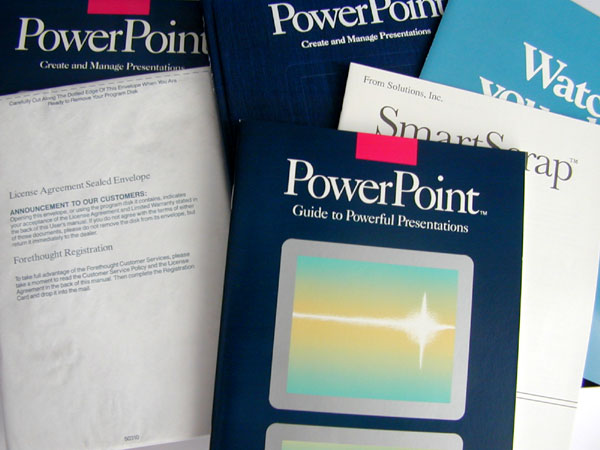
PowerPoint version 1 - What The Box Contains

Enter PowerPoint. Its first iteration was really a software form of the carousel – a slideshow.  PowerPoint was, and still is, fast and easy, with lots of cool effects, animations, fonts, colors, and charts. Where slideshows were once reserved for the most important presentations, PowerPoint could be used in all meetings because it was so easy and inexpensive that anyone could make a presentation. (Though, we admit, some are much better at it than others.) PowerPoint made slideshows mainstream. To this day, it remains such a powerful business tool that it has not only changed the way we present in meetings and classrooms, it has also changed the way we write, speak and communicate in general. Bullet points and outlines replaced long-form prose. Though misguided and certainly not recommended, Relying on slides became a crutch for spontaneous discussion and debate. While it made it easier to speak in front of a room, the rigid nature of a linear slide show replaced spontaneous discussion.

Yet spontaneous discussion, where we share our ideas with each other, is the best way to learn.

PowerPoint version 1 - What The Box Contains

While PowerPoint was taking off in the early ’90s, CD-ROM encyclopedias were also gaining popularity. CD-ROMs offered libraries of multimedia – pictures, video, text, and other information – on a disc. They were a form of interactive, multimedia books. One of the first interactive books created for MGM was “James Bond – The Ultimate Interactive Dossier.” It was an encyclopedic reference to all things James Bond. The explosive action shots, the different James Bond actors, the beautiful Bond girls, the evil villains, and the stunning locations. Type in Pussy Galore and you’d be transported back to 1964 (before #MeToo) to read a synopsis and watch a video of Honor Blackman flying over Fort Knox in Goldfinger.  It contained pictures, videos, story synopses, and even a trivia game. You could play the CD on your computer and browse the library or do a keyword search to find your favorite villain. It was an interactive media library where all of the content was formatted to present – all the content was a slide. One interesting development from this was that James Bond aficionados would use the Dossier as a reference, as proof, as they were debating and discussing various James Bond storylines and characters. And although CD-ROMs soon became antiquated, this was an early example of the presentation following the conversation. These were great advances in presentation technology, but we were still tethered to a machine. We were a captive audience.

Now the Presentation Follows the Conversation

Better presentation strategy combined with technological advances is transforming presentations into enterprise assets – enterprise PowerPoint. Today, presentations are a mashup of all sorts of media and files – PowerPoints, but also images, videos, PDFs, Word, Excel, audio, etc. They are structured content, formatted as slides, and ready to present. Presentations are now a branding element in the marketing mix, along with advertising, public relations, digital, and collateral. Presentation content is designed, written, approved, executed, and measured for the benefit of the entire organization, at the corporate level. Yet, the employees still maintain flexibility and control over their individual meetings and tasks. After all, who knows better what to present to a prospect than the salesperson who just had an in-depth conversation with that same prospect the week before the big meeting? Corporate marketing has control over the brand and message and can track its use, while users in the field have flexibility. It’s a win-win for both corporate marketing and the team in the field.

PowerPoint and Back Again
Image: 123RF

Advances in interactive technology have allowed presentations to be more conversational. Search and interactive features allow presenters to zoom into a particular slide, based on the feedback and cues that their audience members are giving them. No sooner does someone from the audience ask a question than the presenter is able to present content directly addressing the question. Presenters can build a presentation as they go, customizing directly to the mindset of the meeting attendees. Linear slideshows are becoming a thing of the past.

With presentation management, today’s structured presentations follow the conversation.

But tomorrow, the conversation will dictate the presentation.

Categories
Presentation Management

The Future of Presentations

Presentation Management 26

Original content by AlexAnndra Ontra and James Ontra
Enhanced by Geetesh Bajaj

In the previous part of this Presentation Management series of posts, we explored how you can organize content for story presentations. In this part, we look at how the presentations of the future will work.

If you think about it, over the past century humans have been forced to adapt to technology and the structure it creates. It’s not “normal” to work from 9 a.m. to 5 p.m. or write by typing on a QWERTY keyboard. Presentations are another example. We create linear slide decks, then conform our work conversations to the deck because that’s the way the technology works, by showing us one slide at a time, in order. It’s not the way we’d naturally talk and discuss a topic, but if we want to use technology, we have to do it technology’s way.

In this century, technology is increasingly conforming to the way humans do things. Like, we can talk to our devices instead of tapping on a tiny screen. Presentations are moving that way, too. In fact, it is the biggest change in the nature of business presentations since the advent of PowerPoint. For the first time, the technology and the linear presentation deck will no longer dictate the conversation and interaction.

Instead, the conversation will dictate the presentation. Thanks to voice recognition and artificial intelligence, the next generation of presentation technology will listen to what’s being said, comprehend the context in the room, know what visual content is available in the approved presentation management system, and automatically and instantly bring up visuals that fit the conversation at that moment. It’s almost like having a personal assistant at your side, listening and watching the room, and instantly finding and showing images that are exactly what’s needed in-the-moment.

How it Happens?

How would technology like that work in practice? Imagine this scenario:

  1. The CEO of a major cruise line is speaking at a travel conference in an auditorium that only seats 100 people. He cues up his presentation management app, and projects slide content on the big screen and a few monitors inside the auditorium, as well as outside in the hallway and all around the convention center. Anyone who sees it, either sitting in the live audience, walking by one of those monitors, or browsing on a website, can participate in his presentation. They can log in to the presentation on their own phone or another device. After all, they have full A/V on their phone, where they can hear his presentation and see his slides.
  2. Someone in the audience raises his hand and asks a question that everyone in the audience, whether they are physically sitting in the auditorium or have logged in from 1,000 miles away, can hear.
    • “Can you tell me more about cruises to Alaska?”
  3. As the voice-recognition technology processes the words in the question, AI starts to sort through the speaker’s presentation library, which includes all content about the cruise line.
  4. Up pops slides with visual support for the question. The audience will see pictures of the Kenai Fjords, snow-capped mountains, and a luxurious cruise ship, with every pampering amenity you could imagine, sailing through it all. It’s conversational AI broadcast to the entire world.

Presentations will become more dynamic, more fluid, more like the human thought process. And the technology we use for presentations will become an afterthought.

And this is right around the corner – the way presentations will be within a few years. Voice-recognition technology is exploding. In a few years, it is estimated that over half of all searches will be powered by speech instead of keyboard input, according to comScore. That means that during an interactive presentation, the technology can listen to the audience’s comments and questions. Those questions and comments will prompt a search. Suggestions for slides to present will appear based on the conversation as it unfolds.

That technology will expand with Predictive Slides™. Your presentation management app will offer slide suggestions based on a range of variables, such as who you are, the last slides you used, the slides your colleagues used, the audience, the most popular slides, and on and on. Companies will be able to customize those variables based on the individual user, and the presentation will be created based on those inputs and variables. It’s similar to how shopping on Amazon works. Amazon presents products based on your purchase and browsing history. Your presentation management app will present slides in a similar way.

Uisng Predictive Slides™

There has been a gap of so much time since AlexAnndra Ontra and James Ontra authored the book that’s being made more visual and serialized. In technology terms, this span of time could be termed as one generation. So, I was curious about how the Predictive Slides™ technology has evolved, especially since the world has been gripped by a pandemic in that same period of time. Let’s hear it from James, who kindly shared some thoughts.

Geetesh: James, will this Predictive Slides™ technology be built into Shufflrr?

James: Yes, it will be built into Shufflrr.

If you’ve used Netflix or a similar media platform, you’ll find similarities. Netflix is an onscreen design that works like a slide. If you’re looking at your TV, you’ll find that Netflix is essentially a slide with navigation. And they are pulling up more slides behind the scenes as you click on an option. Over a period of time, they have studied usage patterns, including your preferences, and can recommend related shows.

With related shows, they may have noticed that you like horse racing. Therefore, there will be a recommendation for another horse racing show. They may also notice that users who watch horse racing also like leather clothing. So, artificial intelligence is helping them address your needs better.

We used to collect thousands of presentation slides for conventions, where people put them on their podiums and spoke. So, the AI in Predictive Slides™ can provide a few selected slides that might be relevant to what you said, and then you pick the one you want. And your picked-up slide comes up next. This is what we call “the presentation following the conversation”.

This will also work at the slide level. Based on the user’s input and criteria, slides will pull information from different databases to create a specific slide for one specific instance. For example, a financial adviser is meeting with his client. Today, he searches several different databases to review that client’s portfolio, credit card debt, stock positions, and IRAs, as well as age, income, and stated financial goals.

With all that information culled together, the adviser will then input that into another database to get suggestions for changes to the portfolio. And then, the adviser, or his admin, will create a nice slideshow. That’s labor-intensive and prone to lots of human errors.  In the future, all of this data will feed directly into a formatted, branded slide … visualized and ready to present.

Predictive Slides

Predictive Slides™ can be generated before the meeting or during the meeting, as the conversation progresses.

During the meeting, the slides themselves will be created according to verbal inputs based on what people are saying:

  1. Imagine the financial adviser is meeting with that client for the first time. He discusses the client’s current financial status, her salary, her credit cards, mortgage, age, expenses, and goals for her retirement.
  2. As the client speaks, the presentation app is accessing various financial databases to build her portfolio and then creates the slides on the fly.
  3. The adviser and the client review the presentation together. The operative word in this is scenario is together. The adviser is not presenting to, or talking at, the client. He’s discussing the financial plan with her. She’s responding, and the presentation is updating according to her immediate feedback. So the adviser can focus on the client, not the slides.
  4. The slides fall to the background while the two parties make a human connection, fostering trust and building a better relationship.  They learn more about each other. The adviser not only gets a better understanding of his client’s financial goals, which is the purpose of the meeting but also of her personal life, which certainly affects her finances.
  5. In the process, the client starts to trust her adviser and starts to see him as someone genuinely interested in helping her achieve her financial goals. After all, that’s what usually happens when you break down barriers and just start talking with someone.
  6. As a result, the adviser is in a better position to help his client, because he knows more about her, and the client gets a better financial plan. It may sound ironic, but presentation technology will encourage human connection.

Advances in technology will free us from the very technology to which we’ve become so addicted. Hardware continues to get smaller and cheaper. You will be able to access your presentations from your phone, your watch, and maybe even your glasses. Smaller devices will become ubiquitous, and as that happens they will also fall into the background. A watch is an accessory, it’s not the outfit. Look around today and you’ll see most people glued to a screen, clicking, searching, and scrolling through data, scrolling through slides. AI and voice recognition will flip that dynamic. As the searching and scrolling through data is done for us — as it follows our voice commands and conversations — we get freed from our devices.

When our eyes are separated from a screen and our hands are freed from a keyboard, we are back in control of our lives. We can look up and around. Look at our friend, our business partner, the other people in the room. We can see them, talk with them and, above all, make a real connection with them. This is important in business, where having the latest gadget is a status symbol, but it’s also a distraction. Everyone is so busy checking out your new Apple Watch that they forget about doing the new budget allocations. And it’s even more important at the dinner table, where everyone is interacting with their phones instead of each other. Advances in AI, voice recognition, and presentation technology will correct technology’s worst flaws. They will free us from the devices and apps to which we’ve become enslaved, empower us to be more productive in our daily jobs, and above all allow us to connect with each other in a more meaningful way and form stronger bonds. That’s progress.

Categories
Presentation Management

Content Organization

Presentation Management 25

Original content by AlexAnndra Ontra and James Ontra
Enhanced by Geetesh Bajaj

In the previous part of this Presentation Management series of posts, we explored how creating a story for a business presentation is different than constructing other stories. In this part, we look at how you can organize content to make your business story interesting.

The next step is to organize slides into a library that tells an even bigger story: the story of your enterprise. Let’s expand the same methodology that we explored in an earlier post:

Every slide is a scene; every presentation is a story

If we were to expand the scope of this thought to your enterprise, you will benefit even more. If you work for a large enterprise, there could be many departments divided by discipline, product, or geography. Each department has a story.

Here’s how we built a presentation management solution for cable TV company Scripps Networks, which had a mission to improve their viewers’ lifestyle and community. Its portfolio of networks included brands like Food Network, HGTV, DIY Network, Cooking Channel, Travel Channel, and Great American Country.

Each network answered a So what that mattered to viewers.

Furthermore, each program, each slide, had a more specific So what that mattered to a particular demographic.

For example, Rachel Ray showed people how to cook a great meal in 30 minutes, so we can eat well even when we don’t think we have the time. That was important to time-strapped parents who worked outside the home. We organized content into chapters for each network and slides for each program. Each network told its overarching story: why it exists, what it means to the viewers, and the value for advertisers and cable operators.

Then each program did the same, but on a smaller scale. The stories included factual information about the programs and their ratings, and also a human element about viewers and how that program changed people’s lives.

Each slide or set of slides told its own story. We didn’t just create a chart comparing audience delivery of women 25 to 54 years old. We stated why women 25 to 54 are such a lucrative target for advertisers and included pictures and videos to bring that audience to life. The slides showed real people with real emotions who were affected by those programs.

Content Organization 01

Even though it might be safe to assume that the advertisers in the room knew their target, Scripps went the extra mile and reminded them why their target is important. Finally, to keep the audience engaged, Scripps introduced different presenters to present the different networks, each with his or her own personality and character. And the presenters broke up the slides with videos. The changes added energy to the Upfront roadshow presentations room and kept the meetings flowing. In doing so, Scripps demonstrated that it intrinsically understood the marketplace and how it affected its advertisers’ business.

This approach “allowed all of our salespeople to speak intelligently, whether talking about the details of one program or the value of working with Scripps in general,” said Jon Steinlauf, who was at that time, in 2005, Senior Vice President of ad sales for Scripps Networks. He is now Chief Advertising Officer at Discovery Communications.

He further added, “Presentation management gave them the ability to cross-sell the networks, which translated into higher revenues.”

In the Scripps library, each piece of the content met the criteria for a good presentation management strategy. It was formatted to present; it told a relevant, memorable story; and it was branded and compliant. The 150 Scripps ad sales reps had a range of stories that they could repurpose and customize for their individual meetings. Because they were telling better stories, they became better presenters and ultimately better brand stewards for Scripps.

Content Organization 02

It is important to remember that the Scripps case study we just explored is from several years ago. There are two important observations to explore that are just as relevant today, or maybe even more pertinent now:

  1. First of all, we looked back at a time when very few people were talking about the importance of stories in business presentations. Today, almost everyone is aware that they need to be good storytellers to help their audiences understand messages better. With reducing attention spans, stories help capture and hold attention, and they also make your messages memorable, so that they are remembered, and acted upon, long after the actual presentation.
  2. Secondly, we spoke about the So what principle. So, how relevant is this principle now? We bring an answer to this question from James Ontra in the next section.

Geetesh: James, how does the So what principle help create stories today when attention spans are decreasing all the time? Can the So what principle make stories more factual than human?

James: The So what principle is so very important. If there is no So what to a slide, then the slide has no purpose… If the slide has no purpose, then you have to ask yourself, why did you use it in the first place?

The So what principle is a gauge for audience interest. When So what is high, audience interest is high. When So what is low, audience engagement is low. So, if your audience is less engaged in the slide, then ask yourself why?

Consider any great story/movie/presentation. Every scene has a purpose. The purpose of each scene can be simply restated as the So what. In making movies, no director would waste their time and money filming a scene that has no purpose to the overall story being told. Martin Scorsese would not waste his time filming a scene that has no purpose, and neither should you.

The So what principle can be understood as the purpose of each slide/scene that moves your story along.

In the next part of this series, we will look at the future of presentations.

Categories
Presentation Management

Create a Story for Business

Presentation Management 24

Original content by AlexAnndra Ontra and James Ontra
Enhanced by Geetesh Bajaj

In the last part of this Presentation Management series of posts, we looked at how it could be beneficial to create short and memorable presentations to allow audiences to recollect your content better. In this part, we look at how stories for business presentations are not exactly like stories in a novel or even an autobiography. They are so much more visual.

How to Create a Story for Business – Formatted to Present

One of the elements of presentation management is that all content is visually available in the slide format. Whether it’s an actual PowerPoint slide, a four-page brochure, a white paper, or even a video, all content is ready for presentation on a screen. When you write your next presentation, which is synonymous with telling your business story, think of story elements from a visual perspective. In presentation management, that’s your end game. That means you need to think about content in a different way – a visual way.

Really? Are Business Presentations Like Children’s Storybooks?

When people run large businesses, they believe that their visual senses are far different from those of a kindergarten child looking at picture-filled storybooks. Yet, it would help if to remember that we humans are programmed to recognize pictures from the day we are born. We did not have to go to school or learn to recognize or write alphabet characters to understand visual content. And that’s the reason why picture-filled storybooks are a classic communication idea that works for all ages. Let us repeat this part:

We are programmed to recognize pictures from the day we are born

However, you are creating business presentations for a larger age profile that does not include kindergarten children. And that’s a blessing because you can now use both visuals and text. You can quote numbers, and you can also use info diagrams to combine visuals and text. The artists who create children’s storybooks can only use pictures and small sentences with everyday words. Should we not have a higher sense of respect for all artists, teachers, and parents who work with content created for children?

So, in your business story, you can take advantage of the fact that the sumtotal of using visuals and text is more effective than using visuals alone or text alone. In part 3 of this series of posts, we explored Visual Storytelling. We featured Dr. Richard Mayer and his research-based principles.

And even if your business presentations need not be as overly visual as a children’s storybook, be aware that stories are remembered more if they contain pictures–even business storytelling needs pictures.

PowerPoint is an outline. Typically, you open up PowerPoint and start typing in slides, including a headline and some bullet points. When you write a presentation today, you are just filling in an outline. To create better business stories, get out of outline mode and get into story mode.

Here is a five-step approach to help you create better presentations by penning stories that engage your audience and tap into their emotions. We are using PowerPoint as an example because that’s what most people use to create presentations. But you can apply these principles to any medium.

1. Close PowerPoint 

Don’t start creating a presentation by opening PowerPoint and filling in slides. Instead, figure out your story as if you were talking to someone about it over coffee. Once you’ve come up with a good story, track down someone — a colleague, a spouse, or a friend — and practice telling them the story to see what they have to say. Working this way forces you out of outline mode and ensures that you can whittle the story down to the essentials that can impact the audience.

While you are telling your story, be imaginative. Try and describe visually using analogies so that your listeners start looking at pictures in their minds.

James Ontra

How easy or difficult is it to get into story mode? And are there any analogies that can help? You’ll find this analogy by James Ontra mentioned later in this post as well:

Every presentation is a story. Every slide is a scene. 

2. Imagine a Three-act Play 

Every good story has a setup, a climax, and a resolution. You could also call these elements a beginning, a middle, and an end. Let us explore these elements in detail.

  1. Setup: Establish the characters and the setting. In business, the characters are the products or services you are selling or the objective of the task or project you are planning. The hero is the main driver of your presentation. The setting is your marketplace, situation, or use case. It’s the environment or the world in which your hero operates. Describe the hero, his situation, and why the hero is important to your audience.
  2. Conflict: A good setup will lead the audience right into the big problem or obstacle to overcome. These would be the pain points, market analysis, product challenges or failures, and successes for a business presentation.
  3. Resolution: This is the happy ending — a problem solved, a product sold, a project completed. The outcome should feel meaningful for everyone in your audience. It should answer the question, “So what?”

3. Ask Yourself How Your Story Feels 

Emotions drive behavior more than logic. Our friends in the ad business live by this, but the rest of us in the corporate world tend to forget it.

As noted in the previous section, we get so mired in our self-imposed ideas that we forget about the sensory aspect. Attach the corresponding emotions to the So what points in your deck. While you want your stories to connect to your audience’s emotions, you need to make sure that you’re correctly tapping into those emotions. If you tap into the right emotions, you’ll ultimately get them to “act” the way you want.

4. Visualize the Emotions

What do these emotions “look” like? Once you have a handle on how your story feels, it’s time to visualize the content. Match the image to the emotion and use descriptions with images that trigger the senses and activate the brain. Just keep in mind that you support your story and move it forward with the visuals and emotions you choose.

5. Now, Open PowerPoint and Fill in Your Slides 

You have the story, you have the motivating emotions, and you have the triggers to make it memorable. The hard work, the thinking part, is done. PowerPoint is merely a conduit to communicate that story. It does not drive your story. The story will drive the slides – words, images, charts, and videos.

Every Slide is a Scene

Every Presentation is a Story. Every Slide is a Scene.

We went through five steps to create a great presentation. If you followed these principles of presentation management, you would understand that presentations are corporate assets with long-term value – not just one-and-done.

So how do you take the principles of good storytelling, combined with visualization, emotion, and sensory stimulation, and create presentations that any employee can take apart and repurpose for his or her use? After all, in a large organization, many different people are making presentations with different purposes. Every presentation could very well have a different beginning, middle, and end. It’s not one-size-fits-all. We want to empower everyone to be able to create great stories with the library of slides provided.

Make sure every slide is a scene in the bigger story. Each slide should be able to stand on its own. Think of a slide as a subplot within the story. That way, when your team starts mixing the slides in ways that you never dreamed of, they will still create a professional, branded presentation that’s on message.

In the next part of this Presentation Management series of posts, we will look at organizing your slide content.

Categories
Presentation Management

Short and Memorable Presentations

Presentation Management 23

Original content by AlexAnndra Ontra and James Ontra
Enhanced by Geetesh Bajaj

In the last part of this Presentation Management series of posts, we explored how you can make better presentations by telling better stories. In this part, we look at why presentations that are short and memorable are more successful.

Keep It Short

Keep It Short. The 10-Minute Rule

Our brains are lazy. According to molecular biologist John Medina in his 2008 book, Brain Rules, the mind gets bored at 10 minutes. Next time you are in a not-too-exciting meeting — ergo, the typical corporate meeting with a PowerPoint presentation — check yourself when you check the time. It will be in 10 minutes.

A lot of our clients have very complicated products and services, and the story they need to tell cannot be told in a mere 10 minutes. Pharmaceutical companies have presentations that encompass everything about a drug: its molecular composition, uses, diseases it treats, clinical trials methodology and results, risks, legal disclosures, and other information. Those presentations can grow to well over 100 slides. So what do you do?

To paraphrase Steve Jobs, do something big.

His presentations were 30 minutes to an hour-long. But every 10 minutes he’d break up the monotony by, say, introducing a new speaker, using a prop, or cutting to video. He broke up the monotony to keep listeners riveted.

Break up your presentation into 10-minute chunks. After 10 minutes, make a change. Switch presenters, introduce a prop, ask the audience a question. Do something to break up the monotony. When you have a very long presentation, break it down into sections and make an obvious change to re-engage your audience.

Make It Memorable

Carmen Simon

Have you ever walked out of a presentation with a phrase or image emblazoned on your mind? Or more likely, you’ve walked out of a presentation and couldn’t recall a single thing. In one ear, out the other. Our presentations are competing with a million other things for our audience’s attention, from email to mass media to family issues. Everyone is multitasking and distracted. Therefore, as presenters, we have to work harder to not only get our message across but to make it memorable. We asked Carmen Simon, author of Impossible to Ignore, how to make memorable, impactful presentations.

Here’s her advice.

1. Know What You Want Your Presentation to Be Remembered For

Determine what your audience should remember and why it is important. A lot of business communicators aspire to be memorable, but few know what specific memories they want to set in other people’s brains.

Audiences forget 90 percent of what you share after 48 hours.

Pick the one thing that you really want your audience to remember, and reinforce it throughout your presentation.

Make It Memorable

2. Provide Cognitive Ease

Once it’s clear to you what message you want to stick with your audience, make sure that message comes to their minds easily. Often we get enamored with our own words and ideas, and we forget that just because these messages come to our minds easily, they might not have the same effect on others.

Here’s an example.

Carmen was sitting in a hotel lobby browsing through a magazine article about the new McLaren 570S Spider model. The main message focused on its “dihedral synchro-helix actuation,” which is the technical term for the way the doors swing, guiding air into the side intakes to feed the radiators. Would you remember this phrase after two days? Dihedral-what? You might remember it if you were a car fanatic and might have existing mental models around this type of verbiage. For the average person, if we describe the doors as “up-and-out” doors or “butterfly doors,” it will be easier to remember the message.

Once you clarify the message you want to make memorable, ensure that the language you use makes the message come to others’ brains easily. Cognitive ease is a prerequisite to memorable stories. Make it simple.

3. Use Sensory Stimulation

In the paragraph above, was it easier for you to process the phrase “butterfly doors” more so than other phrases? Visuals are important to memory because we build our memories through our senses, and visual is a powerful sense.

Have you ever looked at a picture of a chocolate lava cake oozing fudge, and thought, I can almost taste it. That’s because the visual image evokes your sense of smell, taste, and chocolate satisfaction. It stimulates your senses.

Appealing to other senses activates additional brain parts, which forms more memory traces. A presentation about arthritis could use a sensory description of arthritic pain like this: “knuckles cracking, throbbing and swollen so badly that she couldn’t even hold her fork at dinner.” Those words “throbbing” and “swollen” evoke pain, and using a fork at dinner is something we do every day, without a second thought (until we can’t anymore).

You May Also Like: Impossible to Ignore: Conversation with Carmen Simon

The examples activate more brain areas (visual cortex, motor cortex, amygdala, frontal cortex, hippocampus). When more brain parts become active, it increases the chance that the stimuli you mention will trigger memories later on. Just in these few paragraphs, words such as doors, butterfly, pain, hands, dinner fork … seeing any of these later may remind you of reading this. In short, try to evoke real human feelings.

In the next part of this Presentation Management series of posts, we will look at how you can think of story elements from a visual perspective.

Categories
Presentation Management

Making Better Presentations; Telling Better Stories

Presentation Management 22

Original content by AlexAnndra Ontra and James Ontra
Enhanced by Geetesh Bajaj

In the last part of this Presentation Management series of posts, we explored some aspects of a presentation’s life cycle: social engagement, reporting, and updating. In this part, we look at why telling better stories helps make better presentations.

We like the phrase, “Content is king!” Without some quality content, any presentation management implementation is a bit of a waste.

When we started working with clients back in the ’90s, every new job was a consulting project that including writing and designing presentations. Those presentation services were initially our primary source of income. We’ve worked with clients in every industry to help them write their stories and create libraries of slides that can be used and repurposed.

In this post, we will share what we’ve learned over the years about how to create exceptional presentations, including what we’ve learned from experts about how presentations affect the brains of those on the receiving end.

Presentations are the Stories for Business

The best presenters are great storytellers. The CEO is often the best storyteller in the company.  Motivating people to act is integral to her and the company’s success, and stories do that better than statistics. Salespeople tend to be good storytellers as well, since their success is directly related to their ability to connect with customers. But employees in every department and function need to be good presenters. A research scientist can present a bunch of numbers with charts and graphs, and bore everyone to tears. But a great research presentation will tell the story of what that research means on a human level, with relatable characters and real feelings. That’s more interesting and more memorable.

Stories

You May Also Like: The Art of Storytelling: Presentations Are Corporate Storytelling by James Ontra

Imagine a Federal Express presentation to see what we mean. The FedEx company story is not just about the logistical genius of strategically placed shipping hubs combined with a fleet of trucks, cargo planes and ships, and a workforce of 250,000 delivery experts. Those are certain elements that make the company successful. But the corporate story is about helping businesses succeed. Think of a hardworking executive under pressure to meet a deadline. The executive is tired, stressed, and fearful of failure – of losing a client and losing her job because she might not deliver. All are strong emotions that we can relate to. Using FedEx, she can work until 9 p.m. and still get her product delivered to her client by 9 a.m. the next day. She gets more time to work, and her client is pleased to have the product on time. The sale gets closed. Everyone is happy.

FedEx Presentation

For this FedEx presentation, you could use images of happy executives and combine them with facts about FedEx’s locations and guarantees of timeliness. But you will remember that the executive was able to turn a harrowing situation into a success story.

So let’s make the business world a better place, one presentation – one story – at a time. Here are some tips to help you craft better business stories, and then organize them in your presentation management solution so that your team can repurpose the slides and decks for their individual meetings.

Make It Relevant. Ask So What?

Every piece of content created should answer the question, “So what?” Whether you’re creating one slide, an entire presentation, a brochure, an email or even a tweet, it should tell the audience why that point is important — and, especially, why it’s important to the intended target. It will take you out of your own head and put you in your audience’s frame of mind. That mental exercise will push you to create more compelling content.

Here are a few messages that stand alone.

  • Our sales increased 15 percent.
  • Our widgets were rated No. 1 by this prestigious industry organization.
  • You are a jerk.

Now let’s take those three statements and add “So What?”

  • Our sales increased by 15 percent, which means you will get a bonus at Christmas.
  • Our widgets were No. 1, which means you will get the best product for the lowest price.
  • You are a jerk, which means no one wants work with you, and your job is in jeopardy.

We want to know, what’s in it for me? When you’re writing a presentation, you want to flat-out tell your audience why this is important, and why they should care. Don’t expect them to make that connection on their own. As a passive listener, that’s not their job. Rather, it’s your job as an active communicator. So what? gives the audience relevance and motivation. Since the purpose of most business presentations is to get people to act, then better presentations provide really good reasons to do so. So what? gives them that reason.

In the next part of this Presentation Management series of posts, we will explore why and how you must keep your presentations short and memorable.

Categories
Presentation Management

Social Engagement, Reporting, and Updating

Presentation Management 21

Original content by AlexAnndra Ontra and James Ontra
Enhanced by Geetesh Bajaj

In the last part of this Presentation Management series of posts, we explored sharing and presenting options. In this part, we look at the last three aspects of a presentation’s life cycle: social engagement, reporting, and updating.

Social Sharing

PowerPoint is going social!

– Kristin Shevis, Chief Customer Officer for Clarifai, exclaimed back in 2018, when we first explained the social capability of our Shufflrr app.

It’s like Facebook or Instagram except the subject matter is your presentation content instead of your vacation pictures. (Yeah, I know, I’d prefer to see sandy beaches over org charts any day.) Users can follow, like, rate, comment, and converse about files and slides.

Here are some more aspects of using social engagement:

  • Social provides spontaneous feedback in The Wheel, helping to improve the content’s quality for its next evolution.
  • When you are collaborating with colleagues, you can see their comments directly on the slide or the file they affect, and then you can respond. Permissioned users can also see the conversation thread, so everyone can understand the context of the file and see how and why it evolved to its latest iteration.
  • On an enterprise level, users can give direct feedback to their presentation team about the content in real-time. They can write a quick comment about what’s good on a slide, or bad, or how a client reacted in a meeting given 15 minutes ago. It helps the presentation director assess the quality of the content, what’s resonating in the field and why, and provides direction for edits and updates going forward.
  • Social also provides a means to give input and share knowledge among the entire group, rather than waiting for that next big status meeting. And let’s be honest, by the time that status meeting comes around, you’ve forgotten about that slide anyway.

That’s why presentation management has commenting and other social features built-in, to keep the feedback loop continual and timely.

Social Engagement

Reporting

Reporting makes presentations smarter. It gives you real intelligence about what’s working and what’s not. Data can be tracked across multiple variables: slide, file, user, group, time frame, and action. Actions are whatever you can do with a slide or file, such as upload, download, delete, update, view, share, broadcast, comment, like, rate, etc. You name it, it’s all tracked and time-stamped. Then, you can customize reports against any of these variables.

The reporting gives you real information, based upon which you can make real decisions. It helps determine what files and slides are used most often, by whom, and presented to whom? What are your most popular products? What messages have your clients been exposed to? And what have they actually purchased? From there you can determine best practices and encourage those practices across other members of your team.

Reporting

Case Study: Charter Communications

Charter Communications used reporting to cut the fat. The presentation team used to create brochures, rate cards and long-form decks for every single business category across 91 local markets.

When the presentation team looked at their usage reports, they learned that their team of 1,500 reps barely used any of that content. They were successful without it.

As a result, the presentation team cut down the material they created to just one three-slide deck for each category. They stopped wasting time and money creating content that wasn’t needed. And the reps got a smaller, better-organized, library of content that was easier for them to search through.

The value of feedback in presentation management multiplies when the quantitative data in reports is combined with the qualitative feedback from social. A data log will tell you that a file was never used. But a comment from a user will tell you that the slide is butt ugly, and they are embarrassed to show it. The product wasn’t bad, just the messaging. And now you know how to fix that slide, and give your team better content. Feedback and analytics give a current and ongoing view of your marketplace.

And that brings us to…

Updating

Now that you have all of this great information about what products and content need to change, it’s useful and efficient to make the change once, and know that everyone in your organization will receive the updated version. It also helps to retire old, out-of-date, discontinued content. Ever sit in a meeting where your colleague pulls up last year’s pricing? Or worse, products that your company no longer sells? I guess he didn’t get the memo. With enterprise updating, you don’t need a memo. It just happens, automatically.

As Bob Davis of HealthTrust Purchasing Group notes,

We are always rewriting. Our account directors come back from a meeting with feedback and suggestions, and we go right back and rewrite the slides. We are always working on our slides.

With slide updating, he doesn’t worry that someone is using an older, outdated, wrong version.

With slide updating, there is a genealogy that occurs in presentations. One parent presentation begets children. When a slide is reused, dragged, and dropped into a newly created presentation, that new presentation becomes a child.

At U.S. Bank, one parent slide can exist in over 300 different presentations across the company. When the presentation director in the home office updates that one parent slide, all 300 versions get updated as well. That’s efficient, productive, compliant, and consistent messaging.

Updating

The easiest way to incent a change is to start with what’s familiar. The elements of presentation management are already familiar. We all know how to edit and create decks.  Some of us are better at it than others, but in business, we’ve all made at least one presentation. We all know how to search through a network or a website to find content. Visualization and better search takes the frustration out of that process. We know how to share files on YouTube, Dropbox, and a million other formats all the time. That’s nothing new. We spend hours commenting and liking on social media, so it’s not a stretch to do the same with your presentation content. And finally, in this age of big data, we are relying more on metrics to see what’s trending, so we make smarter decisions going forward.

In business, we give presentations every day. The elements of presentation management are not new, but presentation management is a new approach to how we treat our content and value presentations as an enterprise marketing asset. Presentation management simply makes presentations better.

In the next post of this series, we will look at how presentations are the stories for business.

Categories
Presentation Management

Sharing and Presenting

Presentation Management 20

Original content by AlexAnndra Ontra and James Ontra
Enhanced by Geetesh Bajaj

In the last part of this Presentation Management series of posts, we looked at the distribution of presentation content. In this part, we look at two more aspects of a presentation’s life cycle: sharing and presenting.

Sharing

Sharing refers to how you share or send files to your clients and other third parties outside of your organization. This is especially important for sales, marketing, and investor relations. Those presentations directly affect the company’s image and bottom line.

This may appear like a seemingly mundane task, but it has huge implications for productivity. Files with images and videos tend to get too large and will be stripped from most corporate email systems. The file-size limit is different for every organization, so you don’t really know if your file will get through or not. Sharing gives media ad sales reps an easy way to send large video files to advertisers. Travel clients have high-resolution pictures and videos in their presentations, too. Anyone in any industry can have big files. The process of sharing these presentations is simple:

  1. Choose one or more files. They could be large PDFs, PowerPoints, images, or videos, it doesn’t matter, as long as they tell the right story.
  2. Click on Share, input your customer’s email address and within seconds your customer can view the files. Like YouTube. It’s instantaneous.

Then, you can track the consumption of the files. Did my client open it, download it, read it, ignore it–or maybe she just never received it? It’s productive to know how engaged your client is with the information you share because that will tell you how interested they are, and then help guide your next steps.

Sharing Files

Similar to the permissions we just discussed, the shared files have permissions as well: permission to download, to edit, to view only, and whether that would be for a limited time frame or in perpetuity. Users not only track how their recipients are consuming the files they send, but they can also control their usage.

Share usage is a component in reporting. One user can track his shares for his own purposes, and the team leaders, which might be the presentation director and the VP of sales, can analyze share data for all users across the enterprise. Managers can see patterns and trends in content sharing, and make content adjustments accordingly.

Presenting

It wouldn’t be presentation management without the presenting. With today’s technology, there are many options for how you present your content.

Human contact is how relationships are solidified. Look people in the eyes, read their body language, watch them react to what you are saying. That is how strong relationships are built. Presentation management fosters better business relationships through higher-quality meetings. Let’s look at how in some different presentation settings.

1. One-to-one:

One-to-one meetings are less formal and more intimate. The presenter can give the presentation directly from her laptop, iPad, or even her phone. One-to-one presentations allow for more feedback and discussion. It’s also an easier format to switch to interactive mode, where the presenter selects content based on the other person’s feedback.

The presentation can follow the conversation. The presenter can learn more and therefore propose a better solution tailored to that person. These are very productive meetings.

Presenting

2. One-to-several:

This is typically a conference room setting where one presenter is addressing a group of up to 20 people. A monitor or screen is needed. Though it’s more formal in nature, there is still the opportunity to go interactive as audience members raise issues and ask questions.

The FDA Advisory Committee presentations are one to several, with an emphasis on interactivity to conduct a detailed question and answer.

3. One-to-many:

This is an auditorium setting, which is more formal. Presentation management allows the presenter to give a pre-rehearsed presentation while fielding and answering questions from audience members. The ability to answer tough questions on the fly, supported by visuals, adds to the speaker’s credibility.

4. Conference:

Slide libraries are an integral tool for conference managers who need to collect and manage presentations for any number of speakers. In this scenario, your presentation management solution will manage the collection, organization, approvals, and presentations on the day of the event. It reduces the administration burden on the event managers.

Speakers send a presentation directly to the slide library, where it is automatically tagged based on pre-configured speaker credentials. Workflow settings can be applied so the presentation gets routed to the appropriate editors and/or approvers in preparation for the conference. And finally, on conference day, the presentations are already tagged and sorted so they can be assigned to the appropriate speaker, breakout room, and time.

The presentation is right there, ready to go on the podium. The speaker can even present directly from the library if your library has broadcast capability.

Linear versus interactive presentations:

A linear presentation, like your typical PowerPoint, is a pre-ordered set of slides–slide one, slide two, slide three, slide four, and on and on… It’s organized, predictable, and easy for the speaker to control. Interactive presentations are more like browsing a website:

  • You click on one thing, which leads you to another.
  • Then, someone asks a question, so you spontaneously pull up another slide, video, or image that addresses that question.

It’s free-form and it follows the conversation. Linear presentations force the conversation. Interactive presentations follow the conversation.

Interactive presentations foster productive conversations where both sides learn more about the other. In more than 20 years of presentation consulting, we’ve noticed that the more senior the executive, the more likely they are to present in interactive mode. They don’t need the security of a linear list. Though the nice thing about today’s interactive presentation tools is that they can accommodate both scenarios:

  • They can let you go off-topic and spontaneously present content, and
  • Then, click a back button to get back to the main storyline.

It’s the best of both worlds: control and spontaneity.

In the next post of this series, we will look at other aspects of a presentation’s life cycle.

Categories
Presentation Management

Distribution

Presentation Management 19

Original content by AlexAnndra Ontra and James Ontra
Enhanced by Geetesh Bajaj

In the last part of this Presentation Management series of posts, we looked at the lifecycle of a presentation, including its creation. In this part, we look at another aspect of a presentation’s life cycle: its distribution.

Yes, you or someone else created the presentation content. That brings forth some questions:

  • Where will the content reside?
  • How will it be accessed?
  • Who gets access?
  • How do users find the specific content they need?

These questions are all related to distribution in presentation management. Now, let us answer the questions one at a time.

Where is the Content?

The content is wherever you save it. It could be on individual computers, a company network, or even on individual cloud accounts. None of these scenarios are ideal because they prevent access to many who need to use the content.

The best solution is to host the content on the cloud because that’s where users can get to it, whether they are sitting inside corporate headquarters or working from home.

Most of our clients subscribe to our hosting service. But there are a few who prefer to keep their content on the premises, in which case they install Shufflrr on their own cloud. The goal is to make sure users can get content, anywhere, anytime, from any device. There’s nothing more frustrating than sitting down at your desk to get some work done only to realize that you are locked out for some dumb reason.

– AlexAnndra Ontra and James Ontra, Shufflrr

How is Content Accessed?

Access begins with logging into the slide library. Users then find content through search and visualization. The quality of the slide library, visualization, content hierarchy, search and permissions will affect the ease or the difficulty with which users can successfully find what they need.

Where is the Content

What About Logins?

The no. 1 reason we get help requests: a user can’t log in, usually because he or she forgot the password or URL.

It happens all of the time for cloud services, not just for Shufflrr. Most of our clients support single sign-on (SSO). When a user is logged into the company network, he or she can access the library. There are no additional passwords to remember. To make it even easier, some clients create a dashboard of all of their services on one home page. That way employees don’t need to remember a bunch of different URLs. The benefit of SSO is that when employees leave the company, they lose access to their slide library, too. From a security standpoint, it’s tighter.

Another option is to integrate your presentation management solution with a complementary content management system (CMS) like Box or SharePoint, or a sales enablement service like Salesforce. Last, but not least, a login can be a stand-alone with unique credentials. Choose the path of least resistance, whatever will be easiest for your team to find and access their slide library.

How Does the Visual Slide Library Work?

All files in presentation management are formatted and ready to present. A slide library is a tool that visualizes the content. It makes a thumbnail of every slide in a PowerPoint presentation or page in a Word document. You can give content a quick preview, or read it closely, so you can decide if it’s the right content for your next meeting. Then, you can select the pieces of those files and reorganize them into your new presentation.

The purpose of the slide library is to turn every piece of content into a slide, ready for use. The slides are then presented to the user so he or she can decide to use it in a new presentation. Like it’s saying:

Look at me! I have some great words, with nice animations and a pretty picture. Pick me for your new presentation!

A piece of content can also say:

Present me right now in the middle of your meeting. I’ve got all the info your client is asking about, and I am ready to go.

That’s an accessible slide library with productive content.

What is Content Hierarchy?

This is how the content is organized. It’s a combination of folders, subfolders, and tags.  A good place to start when trying to decide how to organize your content is to look at how your company is organized: by product, by service, by region, etc. For example, pharmaceuticals organize their content by drug and disease. Financial services companies usually organize their slide library by banking service: retail banking, wealth management, business banking, etc. International cruise lines organize their content by tour destinations and ships. Also consider the purpose of the content: case studies, company histories, product overviews, and executive bios all serve different objectives. The objective of a piece of content will determine where to put it in the hierarchy and who will be given access.

Content hierarchy is integral to presentation strategy. Your presentation management team will ask what is the content, who will present it, and in what business setting. The answers to those questions will guide the content hierarchy for your library, and guide the permissions.

What is Content Hierarchy?

How Does the Search Function Operate?

No matter how well-structured that hierarchy is, everyone’s thought process is different. Think of a 10-year-old boy looking for his socks. He calls down to his mother, “Mom, where are my socks?”  She replies, “In your room, where they belong.” 

She’s thinking about the dresser. But the poor child is looking on the floor because that’s where little boys think all things should go, including socks. Two different perspectives in the same place, for the same item. And that’s why a visual search tool is critical for distribution.

Visual search lets you preview thumbnails of the search results, so you can skim through your options before you make a choice.

Contextual search, where the files are automatically indexed upon inclusion in your slide library, will minimize the need for additional meta-tags, and compensate for content hierarchy limitations. Contextual search means that all of the text that occurs naturally within the file: the file name, the titles and subtitles, the body copy, and for PowerPoint speaker notes, is automatically searchable.

Filtering search parameters allows users to zoom into a subset of content. When you have a library of 1,000 files and 10,000 slides, the ability to set your own search parameters will save users a lot of time wasted browsing through the wrong files.

In presentation management, we just want to make sure that everyone and anyone can find the files they need.  Advanced search tools help achieve that.

Metadata, which is just a fancy word for tags, are another tool for organizing and searching for content. If a word naturally occurs within the context of the copy, then you don’t need to tag it. It will show up in the search. Add tags to a slide or file when it won’t naturally show up in search. Tags can also provide another way to organize the content. Tag a hundred files, and when the user does a search against that one tag, a clean list of files will appear.

What about Permissions?

Permissions are a critical element of distribution because they direct the right content to the individuals and groups who need it most. And permissions hide content from people who should not use it. We wouldn’t want to burden a research assistant with financial content, for instance.

Permissions are a matrix of content access and functionality: who gets access to which files, and what are they allowed to do with those files. The answers to the questions below will be different for different members of your team. For example, an end-user in the field will have fewer editing permissions than a brand manager who is responsible for creating and updating her team’s content. Most of our clients create groups of users with the same permissions. The groups, like the content structure, represent the different lines of business, regions, or executive levels in the company.

Here are some permissions that can be granted or denied. When applied to your organization, permissions allow for control of the message and mitigate risk caused by misuse of content.  “They” in this case refers to individuals and groups. “They” will have a different permission level depending on who they are, and what they need to accomplish.

Permissions granted or denied
Can they see it?
Can they use the content, as is?
Can they download it, remove it from the system?
Can they download it in editable format?
Can they download it in a locked or PDF format to prevent editing?
Can they edit content?
Can they contribute content?
Can they organize the content into a hierarchy for their colleagues?
Can they force those edits on other users?
Can they mix and match that file with other files?
Can they give other company users access to it?
Can they share it with a third party?
Can they make comments on a piece of content, a file or slide or video?
Can they “like” or rate the content?
Can they see and configure reports?
Can they grant or deny permissions?

Distribution is ultimately about productivity with control of the content, who is using it, and how they are using it. The purpose of control is to reduce risk and ensure consistent and accurate messaging across your organization.

In the next post of this series, we will look at sharing content from within your presentation management solution.

Categories
Presentation Management

Lifecycle of a Presentation

Presentation Management 18

Original content by AlexAnndra Ontra and James Ontra
Enhanced by Geetesh Bajaj

In the last part of this Presentation Management series of posts, we looked at strategies to collect and use the content for presentation management. In this part, we look at the life cycle of a presentation, which can be surprisingly much longer and more expansive than what many of us imagine.

Our presentations never finish, says Bob Davis, associate vice president of marketing for HealthTrust Purchasing Group, the purchasing division for HCA Healthcare, which operates 178 hospitals and 119 surgical centers throughout the United States and the United Kingdom.

In presentation management, files are never done. Instead, they evolve, just like the businesses they represent. Slides and decks continually morph and adjust to the market and to the world in which the business operates. The companies and organizations that get the most out of presentation management evolve their content through a constant lifecycle – or what we call The Wheel.

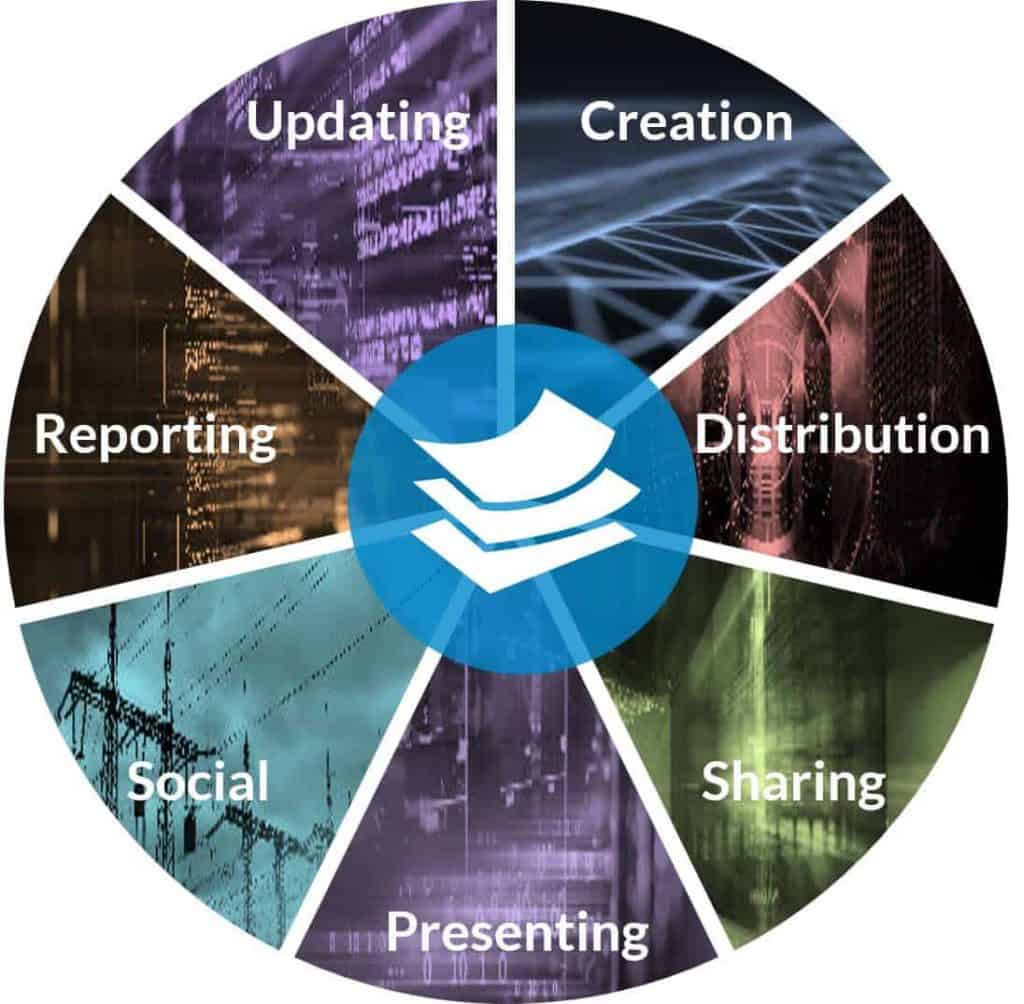
The Wheel looks like this:

Lifecycle of a Presentation

The process illustrated by The Wheel involves seven steps that generally follow each other, leading back to the beginning:

  1. Creation
  2. Distribution
  3. Sharing
  4. Presenting
  5. Social
  6. Reporting
  7. Updating

As we describe the elements in this post and subsequent ones, you will notice that they overlap. In nature when something evolves there is no clearly defined start and obvious end to a phase, but rather things morph. The same holds true for your presentation files. They morph from one phase to the next in the communication cycle of a corporate presentation.

  1. The first step is creation–the act of creating slides and other content for presentations.
  2. Once created, the files are distributed through the presentation management system – into the cloud to be accessed by anyone with permission.
  3. Sharing goes hand-in-hand with distribution – in this case, sharing content with others inside or outside the enterprise.
  4. Presenting is the act of using the content to present.
  5. Socializing the presentation is a way to get comments and feedback.
  6. Reporting means gathering data about how content is being used to better understand what’s effective.
  7. Then all of that feedback and data can be used to update and improve slides and decks – a new act of creation that starts the process all over again.

Let’s break down the details of each step.

Presentation Creation

In presentation management, creation means both content collection as well as the actual creation of a file.

A lot of good content probably already exists around your company. It’s a matter of identifying the files, and then deciding if they are presentation management-worthy – for short, PMW. How do you determine if a file is PMW? Presentation management addresses both the long-term enterprise vision and the tactical day-to-day needs of employees. We suggest starting with the experts for each division. They most likely have great content for their particular product on hand.

Cooper Standard asked the regional leaders around the world as well as the directors for each product line. Each director made recommendations for how their content should be used, and then they contributed the content.

As you review your company’s content, ask yourself:

  • Which files cover enterprise information,
  • Which files cover tactical information and
  • Which files cover both?

What content represents a big picture? What content is going to get my sales rep to close the deal? Or move a project forward? Or educate a new hire? What are the team’s objectives? That will determine which content is PMW.

Presentation Creation

Content can be created in any application. PowerPoint is the most obvious. Thirty million PowerPoint presentations get created every day. PowerPoint is broken into individual slides, and each slide is a story in itself. PowerPoint makes it really easy to prepare presentations for those tactical, everyday meetings that keep the company humming along.

But presentation management doesn’t have to be confined to PowerPoint. It can work with other apps. Apple’s Keynote has great visuals and effects; Google Slides is cloud-based, which makes access easy; and Prezi is a popular app to create interactive presentations. Presentation management works with all file types that your team members use every day to get their job done: videos, images, Word docs, PDFs, spreadsheets, you name it. Make content in Photoshop, Quark, or Apple iMovie; it doesn’t matter as long as the files can be previewed, reused, and repurposed when needed. Anything that can be presented to and discussed with one or more people is content that should be considered in your presentation management strategy.

Compliance should go hand-in-hand with creation to make sure content is up-to-date, accurate, branded, and approved. Your industry will determine your compliance requirements, which can be implemented and enforced through the presentation management platform. Here are a few examples of compliance:

1. Legal Compliance

In highly regulated industries like health care and finance, strict rules govern what can be presented, to whom, by whom, in what format or context, and finally with proper disclosures and disclaimers. Your presentation management strategy can manage this content in three ways:

  1. First, with routing and workflow approvals that ensure that the lawyers and regulators have approved the content before it becomes available to the team.
  2. Second, with file- or slide-locking features to prevent your team from changing text or other content.
  3. And third, by linking features to force required disclaimer and disclosure statements along with the content where appropriate.

With presentation management, you can force your dispersed team to present content in a very specific way – a way that complies with the law and reduces your company’s risk of lawsuits and fines. Our banking clients used slide linking to match the proper disclosure statement to the corresponding slide.

2. Brand Compliance

Brand compliance refers to brand guidelines, graphics, colors, fonts, logos, and templates for all files that follow the brand’s guidelines. The benefits are twofold:

  1. First, you achieve consistent branding across the enterprise.
  2. Second, because your employees are starting with higher-quality content, they appear more polished and professional, but they also become more productive.

As they repurpose presentations, they can actually focus on the specifics of their project or deal instead of trying to play graphic designer to make the slides look nice. We encourage all our clients to use only branded content. Start with the best.

3. Message Compliance

What your employees say and how do they say–both are critical to your company’s success. Message compliance ensures that your team is using the right language and the right version of the slide or file. It’s achieved through good old-fashioned copywriting. And, like legal compliance, it can also be achieved through slide- and file-linking.

For example, if a case study is five slides long, you can link all five slides, so if a user chooses one, he or she always gets all five.

This approach ensures that employees are forced to present the case study in its entirety, enabling them to tell the whole story, and not just the bits and pieces that they like. (Imagine if we could do that in our personal lives. There would be no misunderstandings, no rumors, or good gossip! And then we’d have nothing to talk about over cheap Chardonnay.)

Compliance - Legal, Brand and Message

Your presentation management strategy is as good as the presentation content provided. Collecting, creating, and policing all of a company’s content may seem like a big task, and it may very well be the first time around. But once that investment has been made, it will make everyone in your organization more productive, and the lifecycle will perpetuate itself as part of the normal course of business. It’s a one-time investment that reaps exponential rewards.

In the next post of this series, we will look at the other steps within the lifecycle of a presentation.