Brian Daly worked as an American Investment Banker for 30 years in New York, Paris, and London (1983—2013). He has re-invented himself as an entrepreneur with the assistance of the founders of Hypersay where he always learns something new every day.
Geetesh: Brian, please tell us more about Hypersay and the new Live Subtitles feature.
Brian: Hypersay provides software that converts PowerPoint, Google Slides, and PDFs into interactive ‘Live Presentations’. Within Hypersay, the presenter adds polls, quizzes, videos, etc. to make the slide presentation interactive. The audience accesses the Live Presentation through a QR code.
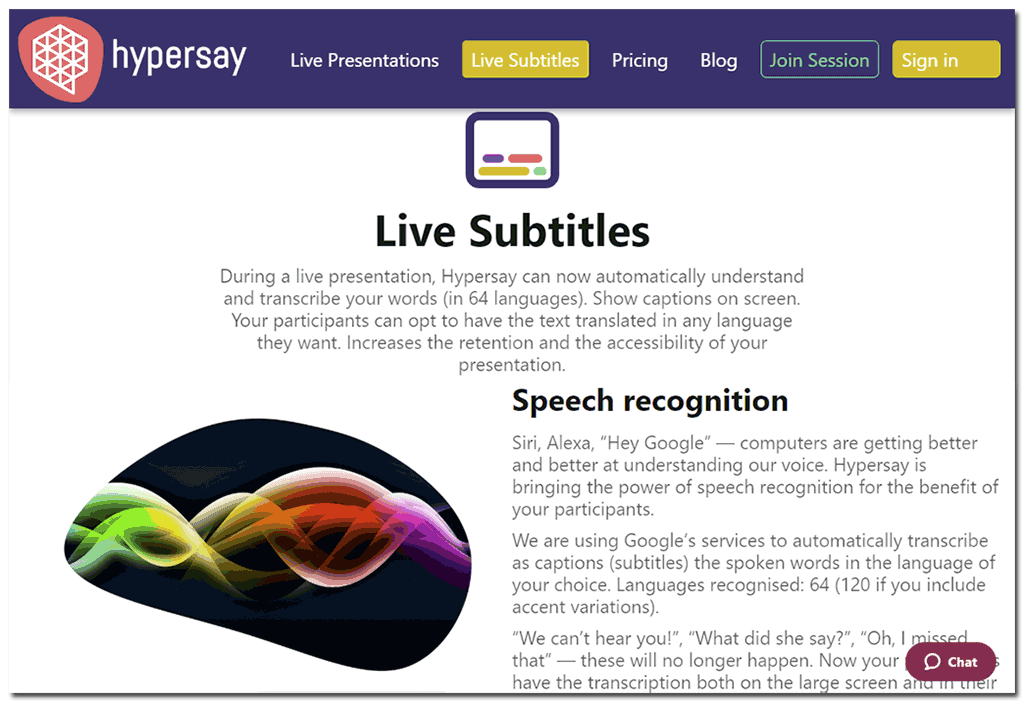
The new feature of Live Subtitles and Live Translations is a crucial step assuring that Hypersay can be used as a full-service communication tool for slide presentations. The ubiquitous nature of the mobile device in today’s world means slide presentations compete for an audience’s attention. Hypersay allows the mobile device to become part of the presentation through interactivity (polls, quizzes) and now, live captions scrolling on the mobile device in +60 different languages.
Geetesh: Can you share some scenarios where you see the Live Subtitles feature being used?
Brian: Hypersay is currently used in education (university lecture halls), corporate meetings and training, and events in +120 countries. Live Subtitles and Translations will enhance any scenario where:
Certain audience members cannot hear the presenter, for whatever reason, including overcoming accessibility problems.
Certain audience members do not speak the same language as the presenter.
A few examples of where we believe Live Subtitles and Live Translations in Hypersay will add value are:
Events in non-English speaking multi-culture cities (Shanghai, Singapore, Paris, Mumbai, Frankfurt, Bogota, e.g.) where the presenter is speaking in English.
A University Lecture Hall where some students have accessibility issues and/or have English as a second language.
An International Drug Company hosting a webinar for Doctors residing in various countries.
A wedding in Dubai, where the father of the bride from Bengaluru is giving the speech of his life to his new son-in-law’s family from Beijing.
Gil Segal is the creator of ToolsToo and a senior software consultant. Gil is always on the lookout for ways to automate manual tasks in any software he uses and has been a PowerPoint power-user since the mid-90s.
Geetesh: ToolsToo’s new version is 8, and that means your PowerPoint add-in has been around for a long time. What according to you is the reason for its success?
Gil: ToolsToo’s roots go way back to 2000 so you could say this year marks its 20th anniversary and 2019 was ToolsToo’s best year yet in terms of licenses sold!
I believe the main reason for ToolsToo’s success is that it provides tremendous value to its users. It does this by making it easier and faster to create high-quality PowerPoint slides. ToolsToo automates tasks that are either tedious or impossible to do precisely by hand. Some of the more notable examples of this include:
Make Same Table Format: (new in v8) Copies the formatting from a table to other tables
Make Same Rounded Corner: Copies the exact arc of the rounded corners from a shape to other shapes
Add to Group: Adds one or more shapes to an existing group while preserving the group’s animation and front-to-back sequencing
Replicate: Replicates the selected shapes in a grid pattern
Make Same Motion Path End: Applies the end-point from a shape’s motion path to the motion paths of other shapes
Copy to Motion Path End: Copies shapes to the end-points of their motion paths
Geetesh: Version 8 has many amazing features, and I see myself using the Select Same tools so often! Can you share your thoughts about this tool, and other new features?
Gil: ToolsToo v8 is a large incremental version. It features a reimagined Ribbon interface and 19 new tools, most of which originated in customer requests.
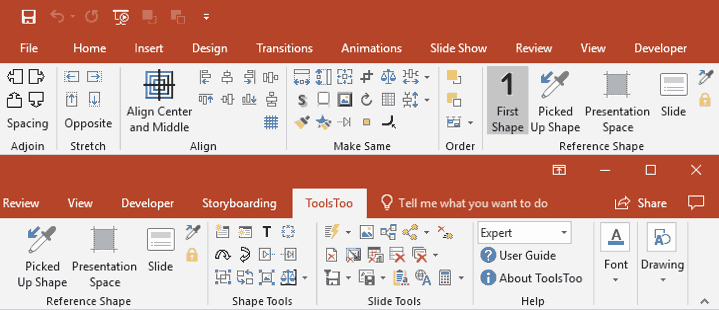
The new interface is designed to make the tools more visible and thus more consumable. As you can see in Figure 1, ToolsToo version 7’s cluttered Ribbon featured lots of small icons.
Figure 1: ToolsToo 7.2 Ribbon with UI mode set to Expert
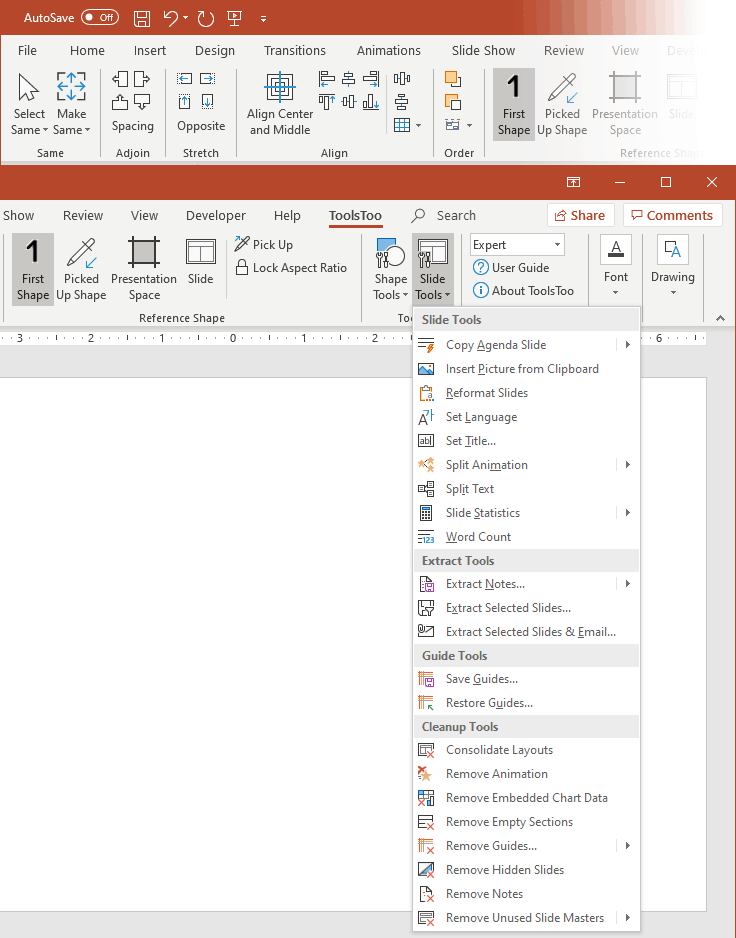
This been replaced in version 8 with menus which are sub-divided into sections featuring both icons and text. This makes it easier to find tools and makes the interface more scalable to better accommodate even more tools in the future.
Figure 2: ToolsToo v8 Ribbon
The Select Same tools are new to ToolsToo v8. These tools came from a customer request. They enable you to select shapes on a slide that match the selected criteria. For example, imagine a slide with many shapes of various colors. Let’s say you are trying to select all the blue rectangles. Instead of manually hunting through the shapes on the slide to select just the blue rectangles, simply check that you have First Shape set as the Reference Shape option, select one of the blue rectangles, then click Select Same Fill to select all the blue shapes and lastly click Select Same Shape to select the rectangles among the blue shapes already selected. For complex slides with lots of shapes, this is far preferable and less error-prone than manually selecting the desired shapes. The Select Same tools have been the most popular of the new features, so far. Users love them!
An additional tool that was requested by customers is the Make Same Table Format tool. Matching table formats is quite tedious as there are many options to set. The Make Same Table Format tool gets it done with a single click.
Yet another customer request was to be able to set the title for multiple slides at one time. This was satisfied by adding the Set Title tool.
ToolsToo v8 also features new tools to hide selected shapes and to hide all but the selected shapes. The latter tool enables you to focus on a specific set of shapes by temporarily removing all the clutter around them. You can then revert to showing all the shapes by clicking on the Show All tool.
Guide tools are another welcome addition in ToolsToo v8. These enable you to save and restore your current set of guides: the presentation-level guides, the layout-level guides for the layout used by the current slide, and the master-level guides for the slide master used by the current slide. The Remove Guides tool gives you the ability to easily remove all the guides for one or more of the guide levels while leaving the rest. The Remove All Guides tool removes all guides throughout the presentation. This is particularly useful when you receive a template that has guides left in by the graphic designer and you want to set your own.
One final new tool worth saying a few words about is the Word Count tool. Like the Word Count feature available in Microsoft Word, the ToolsToo Word Count tool counts words, characters, and paragraphs in the selected objects or text.
With all these new capabilities and the redesigned interface, ToolsToo v8 is the most productive and user-friendly version to-date. As mentioned above, many of the tools in ToolsToo were inspired by customer requests, so keep sending in your ideas!
Kurt Dupont is a solution provider who would go out of his way just to ensure he brings out the best when it comes to issues that have to deal with data-driven presentations, data visualization, and digital signage software. He started by working at airports worldwide to set up airport databases and flight information screens. This evolved to become the basis for PresentationPoint.
In this conversation, Kurt talks about SignageTube, a new cloud-based digital signage product.
Geetesh: Kurt, what does digital signage mean to you, and where does PowerPoint come in the picture?
Kurt: Geetesh, more than 25 years ago, I started working at the airport. And, at the airport, I was building a central database with flights and resource information, and that’s where I got in contact with digital signage for the first time, because some of that flight information is displayed to the staff and passengers at the airport on television, on computer screens. So, that was my first encounter with digital signage. And, of course, that’s the extreme part of digital signage because they have data-driven digital signage.
Geetesh: And where does PowerPoint come in the picture?
Kurt: So, even 25 years ago, they were using a scripting tool to design the screens, and so on. And, basically, that was already then there, the functionality that PowerPoint is providing. So, you can add slides, you can use a landscape or portrait orientation, and you insert text boxes, pictures, and so on. So basically, digital signage is basically a presentation or a slide show that you run on a computer or a television screen. And PowerPoint has it all.
Geetesh: So now, you don’t have one, but you have two distinct product lines, you know, for digital signage using PowerPoint. Can you briefly tell us about both these options?
Kurt: Sure. So, at first, we had our iPoint products. With iPoint, you can create playlists, you can add images, PowerPoint presentations, and videos in a playlist, and then you can schedule that playlist for playback on remote monitors. So, that’s basically what iPoint is doing, and it’s copying and distributing the playlist files through that remote player. And, it’s starting that at the given time that you have indicated.
Now, we came up with SignageTube, which is completely built on all our technologies, and it’s also built in the cloud.
Geetesh: Awesome. So your new product, which is SignageTube, makes it so much easier for anyone to get started with their digital signage. Earlier, there was a sort of a learning curve, but now everything is wizard-driven, automated, and online. So, can you tell us what inspired and motivated you to create SignageTube, and in this way?
Kurt: We see it all the time, that competitors; that they have to use a very expensive Adobe After Effects designer to create videos and commercials for the company. Or on the other side, we see all the digital signage tools that are very simple. They are limited in functionality; you can just enter the text in the text box, or change the image on a slide. So it’s very limited.
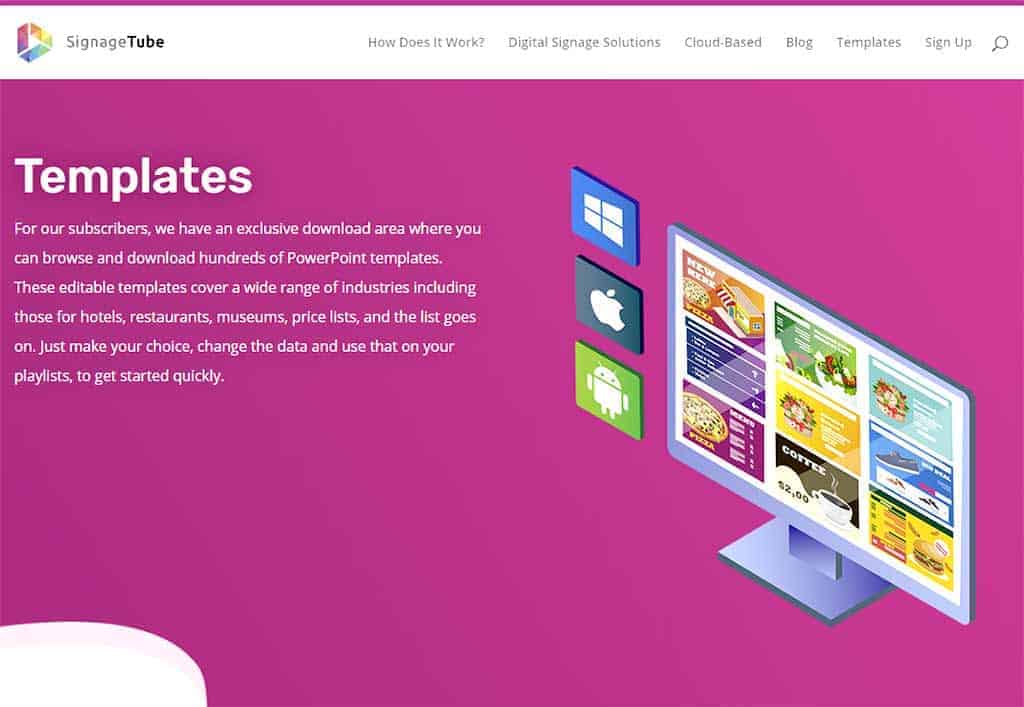
So, it’s one way or the other. PowerPoint is a perfect fit in between and it’s ideal for digital signage because you can build your own menu board on your information channel with PowerPoint. You can add multiple slides so you can use one slide for every promotion that you want to display in the shop, or, for every menu that you need to display in your restaurant. And, that’s the ideal purpose of using PowerPoint in digital signage. And also, within the SignageTube product, we provide a large library of digital signage templates that you can pick from and, and, and modify, according to your needs.
Geetesh: Yes, I have seen some of those templates. They are really awesome. So, Kurt, can you share some user scenarios, some sort of case studies of people using SignageTube, how they have been successful?
Kurt: Basically, every business can use digital signage. Think about fast food restaurants or takeaway restaurants. They change the menus every week, every month. So they have to send out the new price lists and the promotion from the headquarters to the different locations, the stores.
Or schools can use SignageTube to communicate with personnel, students, and parents.
Or think about exhibition centers, who want to show schedules, way-finding in the building, next events, speakers and so on.
So, it’s basically a combination of infotainment and way-finding, which you also see in hospitals and factories as well. And even when you bring your car to a car dealer for yearly maintenance, you are waiting in a waiting room and you can watch digital signage where you see promotions and new models of the cars or the brands and so on. So you always have advertising and infotainment, in every business.
Geetesh: So you can push entertainment, advertisements, information, anything you want media just by using SignageTube?
Kurt: Yes. You design it in PowerPoint. You add transitions, animations, and, you already designed it. It’s very flexible to create and update running digital signage screens.
Geetesh: I do have one more question, and that’s about how does one approach SignageTube? What’s the learning curve? For someone who wants to use SignageTube, where do they get started?
Kurt: First of all, they sign up at the website SignageTube. They’ll get a few introduction emails. There are manuals online, but basically, it’s very simple because you just have to add a Player to the system. You have to install the Player application on the system. And then, you can start sending presentations to that Player. Even in this phase now, that we have now, we can use SignageTube on a Smart TV, so you don’t need a computer so you can just use your computer to design your PowerPoint presentation. You uploaded the presentation to the SignageTube cloud and then the cloud servers are converting this PowerPoint file and sending it out to that Smart TV.
Christian Lund is the Chief Product Officer and Co-founder of Templafy, an enterprise-grade productivity and governance platform for enterprise document, presentation, and email creation. With over 15 years of domain knowledge, Christian helped spearhead the transition for large organizations from on-premise systems to Software-as-a-Service solutions for document content and template management. Templafy is now a global leader in its category, serving many of the largest international organizations and over 1.5 million users.
As a CPO, Christian oversees Templafy’s product organization and is responsible for connecting Templafy’s overall product strategy and vision with market intelligence and internal operational execution. Christian helps develop the product vision and is driving the product narrative to support alignment across all business units and help Templafy’s go-to-market activities.
Geetesh: It’s great to reconnect with you, Christian. How does Templafy help solve branding and compliance problems?
Christian: Templafy’s platform has strong integration with PowerPoint that connects users to company-controlled and on-brand content. The platform is fully embedded in the employee workflow, ensuring every presentation starts on the right foot.
By automating brand and legal compliance in documents, Templafy ensures that the easiest way to create business documents is also the most compliant. We provide employees with all the document assets, images, and data they need through a task pane embedded in PowerPoint.
Templafy also provides powerful productivity tools to help employees create business documents faster.
https://www.youtube.com/watch?v=7c1wU3T8S1s
Geetesh: How can a company get started with implementing Templafy within their organization?
Christian: Templafy’s implementation process has been developed through over 15 years of designing and implementing tools and templates in PowerPoint for some of the world’s biggest enterprises.
What we see is that when companies start with Templafy, the platform is typically used as an opportunity to refresh template design.
To get clients started, we have a strong global partner network who are experts in this field.
Geetesh: What results can they expect in the near term after implementing Templafy?
Christian: Companies can expect a spike in productivity soon after implementation as well as increased usage of their presentation assets and a higher level of professionalism in documents produced.
A recent study by Forrester demonstrated just how much productivity companies gained as a result of using Templafy. The study estimated employees were creating presentations 30% faster thanks to our workflow setup.
Templafy’s productivity tools not only help users create documents more quickly, but they can also auto-check for accuracy.
https://www.youtube.com/watch?v=2A1ASR4jnek
The views and opinions expressed in this blog are those of the authors and do not necessarily reflect the official policy or position of any other agency, organization, employer or company.
Presentation Management Strategic to Enterprise Communication
James Ontra
James Ontra is co-founder and CEO of Shufflrr. His 30-year career has focused on the highest-profile presentations for world-class companies. His clients have included: American Express, Bloomberg, Epcot Center, Mercedes Benz, NBC Olympics, Warner Bros., and many more. His vision and strategy have been driving Presentation Management to become a recognized communication discipline. James combined this passion with technical development to build Shufflrr. Presentation Management is smart communication strategy.
In this conversation, James discusses how presentation management is strategic to enterprise communication.
Geetesh: James, in your opinion how is Presentation Management strategic to enterprise communication?
James: Presentation Management strategy uses slides to tell your story. From broad-reaching visions to intricate details of patented processes, presentations are used to communicate your brand, message, and let’s face it: your corporate identity.
Long ago, companies realized the value of TV advertising. If you hire a great director and a Hollywood actor and go to an exotic location to make a commercial that airs during the Superbowl, business will boom. This TV ad process delivers powerful messaging and ultimately sales. The same process-driven strategy is used for radio, billboards, the Web, social, and so on. Each has become its’ own category of strategic corporate communication and each delivers communication value to the enterprise.
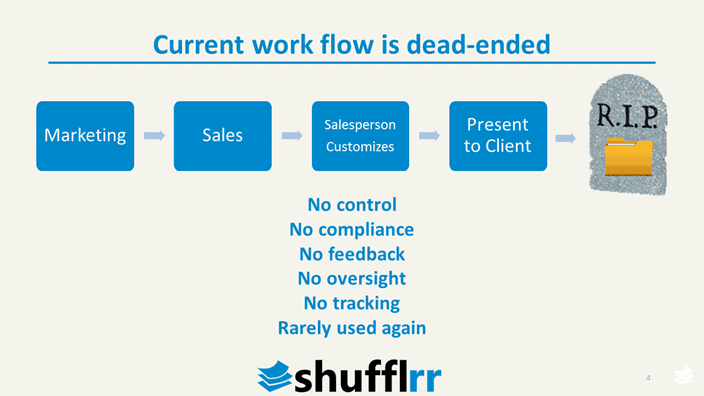
However, presentations have never been valued as strategic to the organization. Even though they are used to communicate all facets of your business, there is no universal way to manage these slides and no means to glean business intelligence from those presentation interactions. They are used to sell products, to sell investors, to train employees, as well as teach and convince prospective clients to become new clients. They touch every employee and every customer alike. Yet for some reason, the current presentation workflow is dead-ended, one-and-done. Usually, the marketing department makes beautiful slides with proper messaging. They give them to sales who then adapt the slides for specific meetings. After the meeting, the presentation dies a lonely death on some network drive only to be referenced (opened, search through, copy-paste, and closed) when sales is in a frantic rush to make a new presentation at some later date. It is time-consuming and not very efficient.
Current Process
Presentation Management elevates presentations to the valuable enterprise communications that they are. At the center of Presentation Management is a visual slide library. By visualizing your slides and files, users can easily search and preview to locate that perfect slide, and then drag and drop it into a new presentation. Presentation creation becomes faster and easier for your organization. It makes everyone more productive. Think of the hours everyone wastes fumbling around PowerPoint.
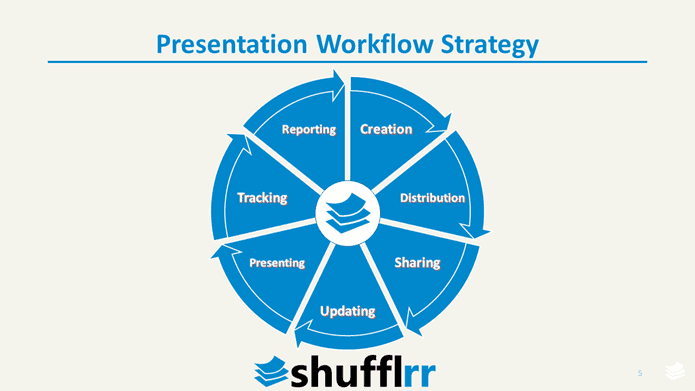
The creation is only one stage of the presentation workflow. Other elements are re-using, updating, sharing, broadcasting, auditing, and the final and highest-profile… presenting.
Presentation Workflow Strategy
Without a presentation management strategy, a user creates a presentation with 20 slides the day before a meeting. That’s it. He’s committed to those slides and he gives his presentation. And then in the middle of the meeting, somewhere around slide #9, the client asks a question off-topic and not included in his deck. A solid presentation management strategy calls for interactivity, so users are productive during meetings. The user can reference the slide library, quick search and visual will let that user find slides and files about that question and can then project on-demand, answering the question in real-time. The presentation follows the conversation. The user looks smarter, the information from the library is accurate and branded and the customer gets the information he wanted. Everyone wins.
Geetesh: How can Shufflrr help achieve the goal of elevating presentations to a higher level in the communications ecosystem?
James: Shufflrr provides the platform to expose the valuable information embedded within companies’ files, to find and preview, so users can actually reuse those files. As a result, the ROI for content creation skyrockets; the same slide is used 100x instead of just once. Brand and message integrity is maintained. And everyone saves time – which is money. Those objectives are of concern to every C-level executive. Shufflrr and presentation management are the path to achieving those objectives.
Furthermore, when execs realize they are getting a better ROI with their content, they are more inclined to invest in designers, animators, writers, marketers. So the perceived value of those skills is elevated and the ecosystem grows.